Convert a Zoom VTT Transcript to Text
Or paste subtitle text
Use an existing Zoom VTT transcript. This tool converts subtitles into text. Where do I get the source file?
Voice tags are handled automatically. To remove plain text names, turn off speaker names and choose their labels below.
Convert an existing Zoom VTT transcript to TXT. Choose whether to keep timestamps and speaker names, then preview, copy or download the text.
Start with a VTT transcript downloaded from your Zoom cloud recording.

Convert a Zoom VTT transcript into readable plain text
A Zoom transcript can contain the words you need surrounded by cue numbers, time ranges, and caption markup. This Zoom VTT to text converter creates a TXT copy for reading and editing in your own workflow. Choose time references, speaker labels, and spacing. Open a local VTT, drop it into the input, or paste the complete transcript; conversion runs in your browser.
Work from an existing transcript
Start with the .vtt audio transcript associated with your recording, when one is available. A meeting video, an audio file, and a chat export are different inputs. This page cleans the structure of timed text; it does not listen to a recording or create missing speech, names, or punctuation.Decide what context the text needs
Keep speaker names when attribution matters, and retain start times when you need to return to the recording. For a reading copy, remove times and choose the spacing you prefer. These choices do not verify the original transcript, so compare important statements and names with your source before relying on them.
See the difference between Zoom VTT and TXT
The synthetic example shows the default result: timestamps are off, speaker text is retained, and blank lines separate cues. The WEBVTT header, cue numbers, and timing lines are removed. Enable timestamps to add each cue’s original start time in brackets. These plain text references help you locate a moment in a separate recording.
.vttWEBVTT
1
00:00:01.000 --> 00:00:03.500
Jordan Lee: Welcome to the meeting.
2
00:00:04.000 --> 00:00:06.000
Taylor Kim: Let’s review the next steps.Jordan Lee: Welcome to the meeting.
Taylor Kim: Let’s review the next steps.
The names and discussion in this example are invented. Jordan Lee and Taylor Kim are ordinary colon prefixes and stay in the default output. To remove them, turn speaker retention off, then select those prefixes from the candidate list. Every candidate starts unselected, so you decide which labels to remove.
Choose timestamps, speaker labels, and transcript spacing
The controls change the presentation of existing cues. Review a passage with a speaker change and an ordinary colon after adjusting speaker options.
Keep or remove time references
Turn timestamps on when quotations need checking against a recording. Turn them off for a cleaner reading copy. The retained time is the start of each original cue, not the exact moment of every word, and the output does not preserve subtitle end times.
Handle speaker names deliberately
WebVTT voice tags identify a speaker separately from the spoken text. When you turn speaker retention off, candidate colon prefixes appear for individual selection. Select only the labels you want removed. Leave headings such as “Decision:” unselected when they belong to the transcript itself.
Choose separated or compact text
Keep a blank line between cues for easy comparison with the VTT, or choose the compact layout when you want less vertical spacing. This is a formatting choice: it does not reconstruct sentences, combine repeated speech, or discover paragraph topics from the discussion.
Inspect and save the full result
Use the initial preview, the full view, or the ending to check the output. Copy and TXT download include the entire successful conversion. The preview is read only; use a text or document editor for corrections, annotations, and your final meeting notes.
- Input format
- VTT
- Output file
- TXT
- File size limit
- 2 MiB
Meeting workflows
Use a plain text transcript in your next workflow

Check quotations and decisions
Keep names and start times when reviewing who said something and where it occurs in the recording. The references make comparison easier, but they do not guarantee that speech recognition captured the wording correctly. Resolve an uncertain name or statement against the original meeting before sharing it.
Prepare your own meeting notes
Remove timing syntax, copy the text into your usual editor, and write the summary or action list yourself. Use the compact option if cue spacing gets in the way of reading. The converter supplies readable source material; it does not infer decisions, deadlines, or responsibilities.
Save a searchable text copy
Download TXT for a local project folder or an existing document workflow. Choose a useful filename and decide whether speaker names are needed by the recipient. Removing recognized speaker labels does not remove names spoken within sentences or make the entire transcript anonymous.
How to convert a Zoom transcript from VTT to text
Begin with the transcript file, not the recording. If you only have MP4 or M4A, obtain or create a transcript in your existing workflow first. Keep timestamps when you need to find decisions in the recording later. For meeting minutes, export a second copy without timestamps and retain speaker labels for attribution.
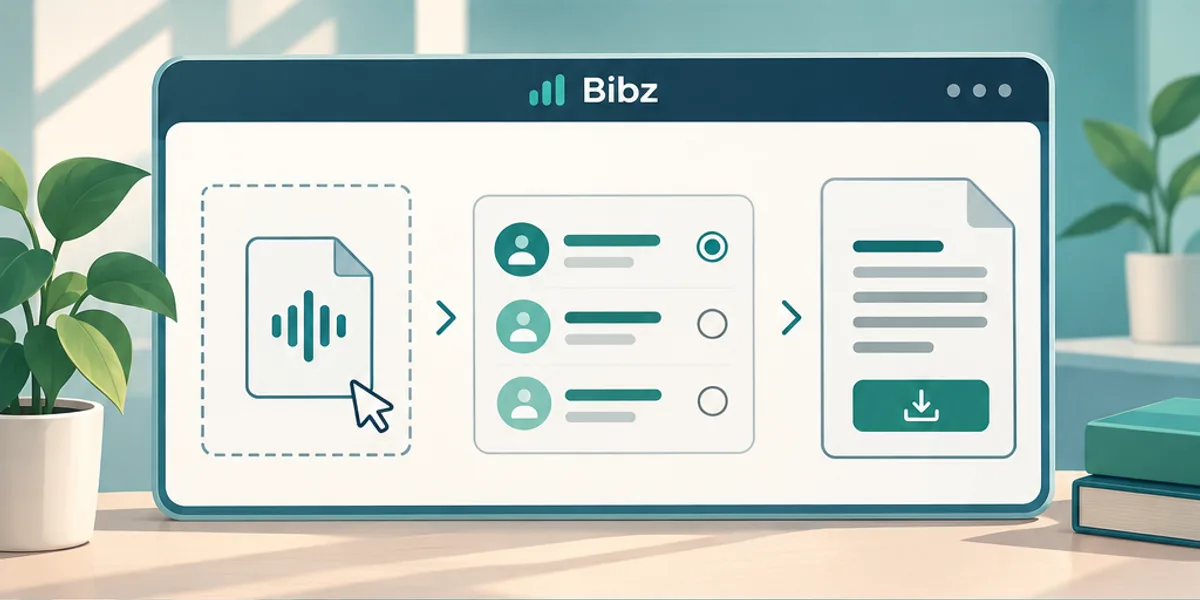
Find the audio transcript file
Look for the .vtt transcript associated with your Zoom recording and save it locally. Availability depends on how the recording and transcript were created. If a host shared only a video, ask for the transcript through your normal workflow. A valid WebVTT file begins with WEBVTT and contains timed text cues.
Open, drop, or paste the VTT
Choose one UTF-8 .vtt file, drop it into the input area, or paste the full contents. Keep the WEBVTT header and timing lines when pasting; they are needed to interpret the source. The input limit is 2 MiB. Start conversion after confirming that the selected source is the meeting you want.
Choose the details to keep
Set timestamps and speaker retention independently. Turning speakers off removes names supplied by voice tags and reveals candidate colon prefixes. Every candidate starts unselected: choose the specific labels you want removed, then check a speaker change and an ordinary colon. Choose separated or compact formatting for the resulting text.
Review the ending and save TXT
Check the first few cues and the final passage using the available preview views. Read the current result status, especially if a later attempt failed and an earlier result remains available. Copy or download the complete TXT, then make wording changes in your editor. Keep the original VTT when you may need its full timings later.
Troubleshooting
Fix common Zoom VTT to text problems
The file has no WEBVTT header or usable cues
Check that you selected the transcript rather than a chat log, recording, or empty export. A .vtt extension alone does not establish the format. Use the reported source line and snippet to inspect a structural error. If the file contains no timed speech, obtain the correct transcript.
Names remain, or a useful prefix disappears
Check whether the names use voice tags or ordinary text. A colon prefix stays unless you select it from the candidate list after turning speaker retention off. If a heading such as “Topic:” disappears, deselect it. Inconsistent or unrecognized prefixes can be edited individually in your text editor.
The words, speakers, or spacing seem wrong
Conversion preserves the transcript’s wording and order; it cannot correct recognition errors or verify identities. Compare important passages with the recording. For too much whitespace, try compact formatting. For invalid characters, save the original text as UTF-8 before retrying, rather than merely renaming its extension.
Questions about converting Zoom VTT to TXT
Can I convert a Zoom MP4 or M4A recording directly?
No. These files contain media, while this tool requires an existing text transcript in VTT format. If the transcript is missing, obtain it from your recording workflow first. Renaming a recording to .vtt will not turn speech into text or create the required cue structure.
Can I remove timestamps but keep speaker names?
Yes. Timestamp and speaker controls are independent, and the default keeps speaker text with timestamps off. If you later turn speaker retention off, names in voice tags are removed. Ordinary colon prefixes require another explicit choice: select the individual candidates to remove from the list.
Why does “Jordan Lee:” remain when I turn speaker names off?
It may be plain text rather than a WebVTT voice tag. After turning speaker retention off, select the matching prefix from the candidate list. Candidates are initially unselected. This lets you remove a speaker label while preserving a heading such as “Decision:” that belongs to the spoken text.
Does keeping timestamps preserve the complete VTT timing?
No. The plain text option adds each cue’s original start time in brackets. It does not retain its end time, positioning, or caption display settings. Keep the original VTT if you need synchronized subtitles; use the TXT references to help navigate a separate recording.
Will compact text merge sentences or remove repeated words?
No. It reduces the spacing between existing cues without rewriting what was said. Short fragments and repeated phrases can therefore remain. Join sentences, adjust paragraphs, or correct recognition errors in a document editor after reviewing the source, especially around interruptions and speaker changes.
What happens to WebVTT formatting and metadata?
Supported display tags are stripped for plain text, common text entities are decoded, and NOTE, STYLE, and REGION blocks are skipped. Speaker handling follows your chosen settings. The result is intended for reading and editing, so visual caption styling and screen placement are not retained.
Does the TXT download include text beyond the preview?
Yes. Copy and download include the complete successful output. A shorter initial preview only changes what is shown on the page; you can inspect the full text or its ending before saving. If your browser denies clipboard access, download TXT instead.
Does removing speaker names make the transcript anonymous?
No. A person’s name, email address, or other identifying detail may still appear within the spoken text. The option only handles recognized speaker labels. Review the entire transcript yourself before sharing it, and make any required edits in your own text or document editor.
Create a readable copy of your Zoom transcript
Open or paste a VTT transcript, choose the context to keep, and save the full text.